
Why it's worth ten minutes
When the new site launches, the old one is usually gone within the hour. The questions about it come later. The client wants to know what the old services page said. Whoever handles SEO needs every old URL pointed somewhere on the new site. You want a before and after for your portfolio. Each of those is easy with a copy of the old site and close to impossible without one.
What to save
| What | Why you'll want it | Where it comes from |
|---|---|---|
| Screenshots of every page | How it looked, and the before for a case study | Desktop and mobile, one file per page |
| The full list of URLs | Every old URL needs a redirect, or it becomes a 404 that used to rank | The sitemap, grouped by type |
| The page copy | Text you would otherwise have to ask the client for | One Markdown file per page |
| Which pages get traffic | Tells you which redirects to check first | Search Console, under Performance, then Pages |
The first three come out of one SiteHaul run. The last is a quick export from Google Search Console, if you have access to the site's account.
What about the Wayback Machine?
It's free and worth checking, but it isn't a copy of your site. The Internet Archive saves pages when it happens to crawl them, so a smaller site may have a handful of pages from different months, some missing their images or styling. You can ask it to save a page with Save Page Now, one address at a time. None of it covers a staging site or anything behind a login.
How to do it with SiteHaul
- Paste the live site's address and press Fetch pages.
- Leave every group ticked. For an archive you want all of it, especially the pages nobody remembers exist.
- If you want the text as well, tick Save page content as Markdown, which comes with the license.
- Press Screenshot selected.
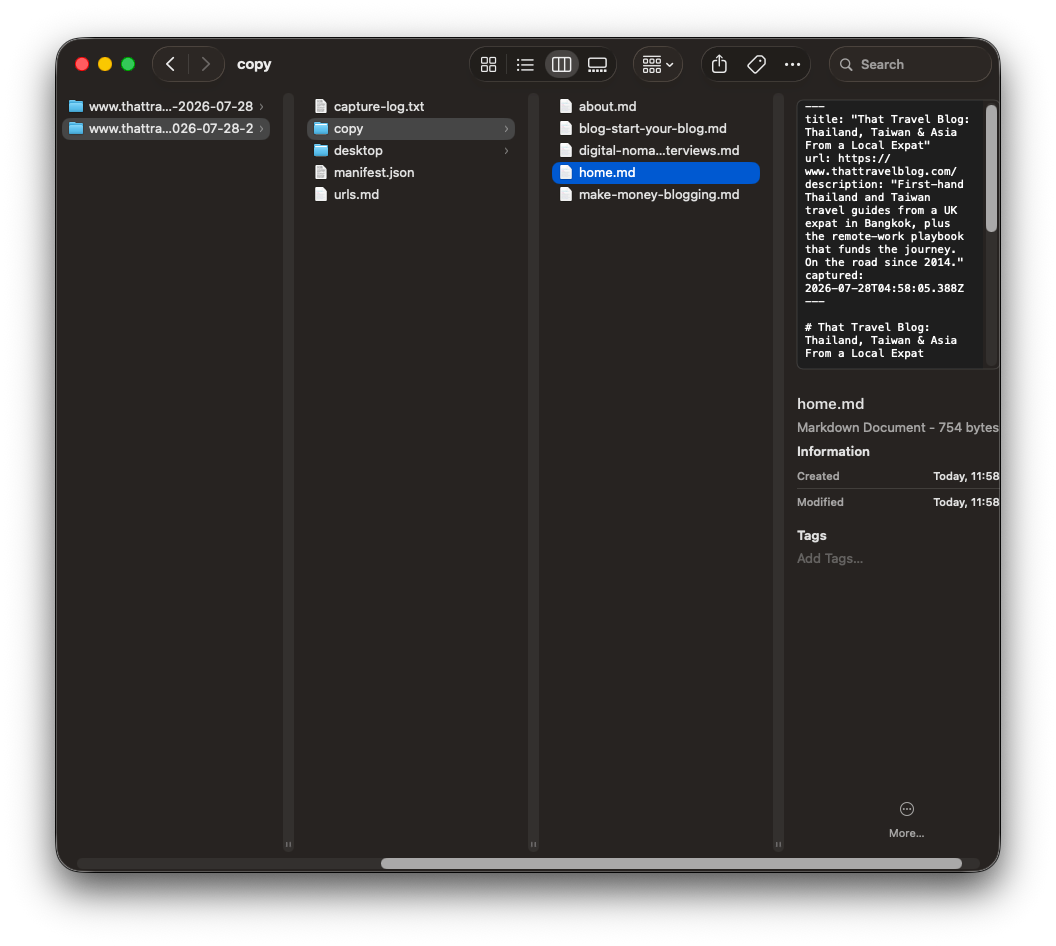
oldsite.com-2026-10-02/
  desktop/     every page at 1440px wide
  mobile/      every page at 390px wide
  copy/        one Markdown file per page
  urls.md      every URL, grouped by type
Everything lands in one dated folder, in Documents/SiteHaul unless you changed it. Zip it and file it with the project, and you can answer most questions about the old site from that folder without logging in to anything.
Turning the URL list into redirects
urls.md groups the old addresses the same way the sitemap did: pages, posts, products, categories. Work down it and give each one a home on the new site.
- A page that moved gets a 301 redirect to its new address.
- A page that was cut gets a 301 to the closest match on the new site.
- Only send a page to the homepage if nothing else fits. Google treats a pile of redirects to the homepage much like missing pages, so the rankings those pages had don't carry over.
Start with the pages Search Console says get traffic. Those are the ones where a broken redirect costs something the day the new site goes live.
Before and after
Run SiteHaul again once the new site is live. A page that kept its address keeps its filename, so services-desktop.png in the old folder and the new one are the same page a few weeks apart. SiteHaul doesn't compare them for you, but two folders side by side, or dropped into Figma, are most of a case study layout already.
If the new site is on a staging server behind a password, it can be captured before launch too. For the basics of capturing from a sitemap, see how to screenshot every page in a sitemap, or read how SiteHaul compares to a browser extension.