
Step one: find the sitemap
A sitemap is the list of pages a site wants search engines to find, which makes it the quickest route to a complete set of screenshots. Clicking through the navigation misses pages. The sitemap usually doesn't.
- Open
/robots.txton the site. A line startingSitemap:gives the exact address. - Otherwise try
/sitemap.xml, then/sitemap_index.xml. WordPress sites also have/wp-sitemap.xml. - If the file lists other sitemaps instead of pages, it's an index. Each entry is a sitemap of its own, usually one per type: pages, posts, products.
A sitemap only includes pages the site chose to list. Anything marked noindex won't be there, and neither will most pages behind a login.
Four ways to capture the pages
| Method | Good for | Watch out for |
|---|---|---|
| By hand in a browser | Up to about ten pages | Two captures per page if you need mobile, and naming every file yourself |
| A script | Developers who want it free | Every problem in the next section is yours to solve |
| A hosted service | Capturing on a schedule, over months | An ongoing cost, and every page renders on someone else's servers |
| A desktop app | A whole site at both sizes, on your own machine | SiteHaul is Mac only, and $49 past ten free pages a month |
By hand
Chrome can capture a whole page without an extension. Open DevTools, press Cmd+Shift+P, type “screenshot” and choose Capture full size screenshot. Firefox has it on the right-click menu under Take Screenshot, then Save full page.
That's fine for a handful of pages. The work grows with the count, though. Twenty pages at desktop and mobile is forty captures, each needing the window resized and a filename you'll recognize later. An extension like GoFullPage is quicker per page but has the same arithmetic, which the SiteHaul vs GoFullPage comparison goes into.
A script
If you write code, Playwright can do this for free. This reads a sitemap and saves a full-page screenshot of every page it lists:
import { chromium } from "playwright";
import { mkdirSync } from "node:fs";

const sitemap = "https://example.com/sitemap.xml";
const xml = await (await fetch(sitemap)).text();
const urls = [...xml.matchAll(/<loc>(.*?)<\/loc>/g)].map((m) => m[1]);

mkdirSync("shots", { recursive: true });
const browser = await chromium.launch();
const page = await browser.newPage({ viewport: { width: 1440, height: 900 } });

for (const url of urls) {
  await page.goto(url, { waitUntil: "load" });
  const name = new URL(url).pathname.replace(/^\/|\/$/g, "").replaceAll("/", "-") || "home";
  await page.screenshot({ path: `shots/${name}.png`, fullPage: true });
}
await browser.close();npm install playwright
npx playwright install chromium
node shots.mjsIf the sitemap is an index, its <loc> entries are more sitemaps, so fetch each of those and collect their pages instead. On a simple site that's the whole job. On most real sites, expect to spend longer on the problems below than on the script.
A hosted service
Stillio and Apify both take a sitemap and capture every page on their own servers. Stillio is built for capturing on a schedule, so it suits keeping a record of how a site changes over months. Apify charges by usage and suits developers who want the images through an API. Either way you pay for as long as you use it, and the pages are rendered and stored elsewhere, which matters for client work under NDA and for sites that aren't public yet.
A desktop app
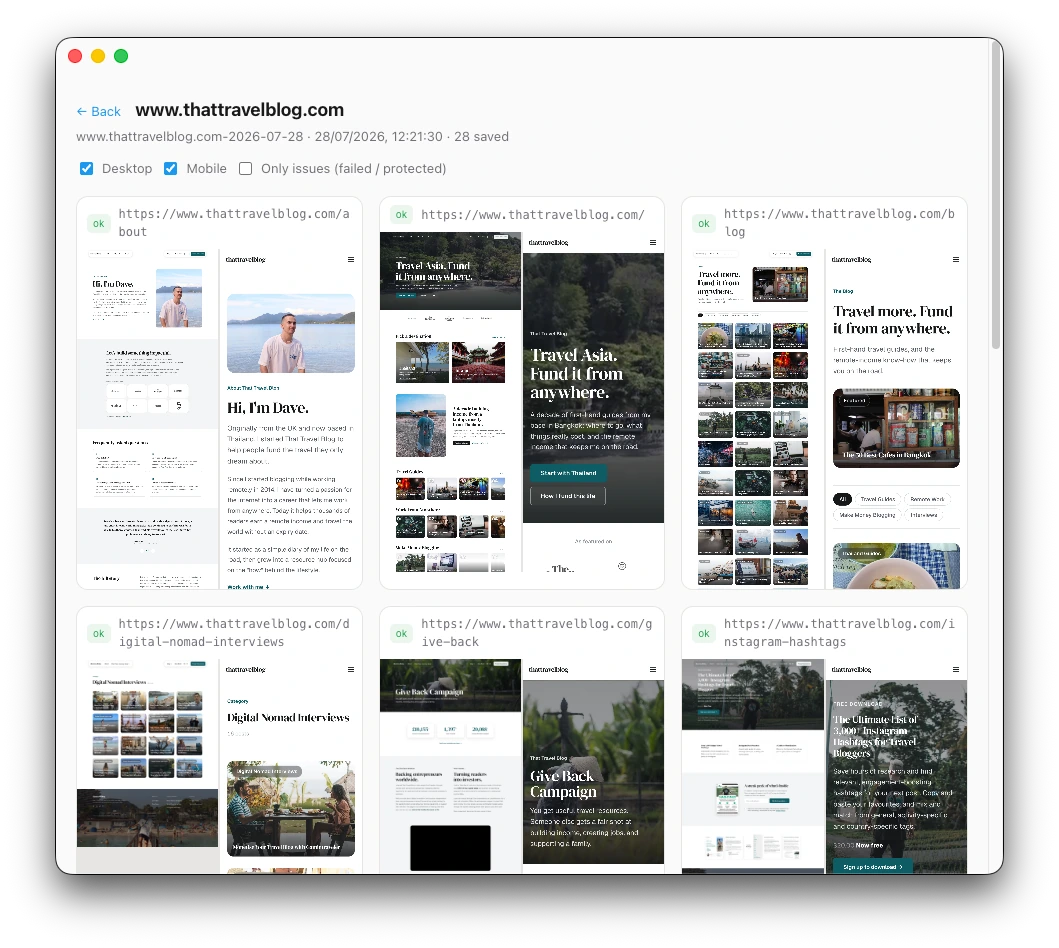
This is what SiteHaul does. It reads the sitemap, shows you the pages grouped by type so you can untick what you don't need, and captures every one at desktop and mobile sizes in one run. It runs on your Mac, so nothing is uploaded, and it's free for ten pages a month, then $49 once.
- Paste the site's address and press Fetch pages. SiteHaul checks robots.txt and the usual sitemap locations, and follows sitemap indexes.
- Review the list. Pages arrive grouped as pages, blog posts, products and so on, and a whole group unticks at once.
- Leave Desktop and Mobile ticked and press Screenshot selected.
- Open the folder. Every file is named from its URL.
example.com-2026-09-25/
  desktop/
    home-desktop.png
    pricing-desktop.png
    blog-first-post-desktop.png
  mobile/
    home-mobile.png
    pricing-mobile.png
    blog-first-post-mobile.png
  urls.md
urls.md is every URL the sitemap listed, grouped by type. It's a useful record on its own, and the starting point for a redirect map if the site is about to be rebuilt.
What quietly ruins a batch of screenshots
A tool that captures one page well can still fail across a whole site. These are the problems that turn up, all of them found capturing real sites. SiteHaul handles each one, and a script has to as well.
- Cookie banners and popups. A consent banner sits across the top of every page, and a newsletter popup can cover the middle. Accepting the banner matters too, because that's what makes embedded maps and videos load.
- Chat bubbles. One widget in the corner turns up in every capture of the site.
- Lazy-loaded images. Images further down the page don't load until you scroll to them, so a page captured without scrolling comes back with empty rectangles.
- Entrance animations. Page builders like Elementor hide sections until they scroll into view. If that never triggers, the section is still there but invisible, and the capture has a hole in it.
- Sticky headers. If the page hasn't settled back at the top when the shot is taken, a fixed header lands partway down the image with the content sliced behind it.
- Rate limits. Request pages too quickly and some sites answer with an error page, which captures like any other page and is easy to miss in a folder of forty.
- Coming-soon pages. A staging site in maintenance mode shows the same placeholder at every address, so every capture succeeds and none of them is the site.
Each one takes a few lines of code to handle. The slow part is finding out about them.
If the site has no sitemap
Plenty of small sites don't publish one. In SiteHaul, open Advanced, choose Capture a list of URLs instead and paste the addresses one per line. The rest works the same way.